
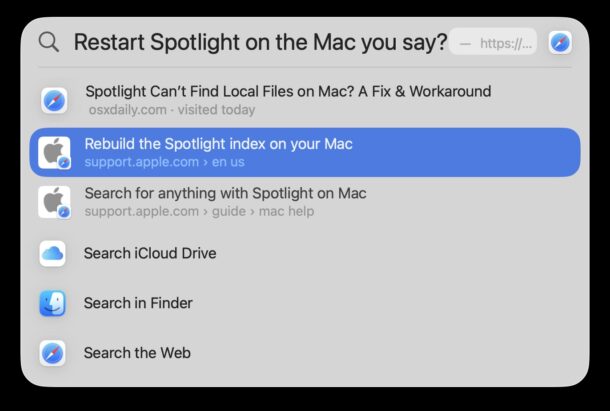
Restarting and relaunching Spotlight on the Mac have been helpful troubleshooting tricks since the debut of the search engine to the MacOS platform. Often if you restart Spotlight, rebuild the index, or kill specific Spotlight processes, you can typically resolve many common issues with the MacOS search engine. Given the utility of relaunching the Spotlight process on the Mac, it’s reasonable to find new ways of doing so to be valuable in a Mac users troubleshooting arsenal, and what we’re going to cover here is a fairly unique indirect way to restart Spotlight on a Mac.
The Spotlight trick here is unorthodox and unexpected, and not necessarily what you would think would relaunch Spotlight, but it absolutely works.
Restarting Spotlight by Toggling File Extensions Off & On
Would you have guessed that toggling filename extensions on the Mac would relaunch Spotlight? This is something I never noticed as a side effect of this setting, but according to eclecticlight.co, who confirmed by watching system logs, it restarts Spotlight, and I can confirm that from my testing as well. So, here’s how you restart Spotlight with this unusual method:
- Go to the Finder and pull down the “Finder” menu, choosing “Settings”
- Go to the “Advanced” tab and then toggle the switch for “Show all filename extensions” off for a moment, then then toggle it back on again (we recommend having this feature always on, it’s too useful not to)
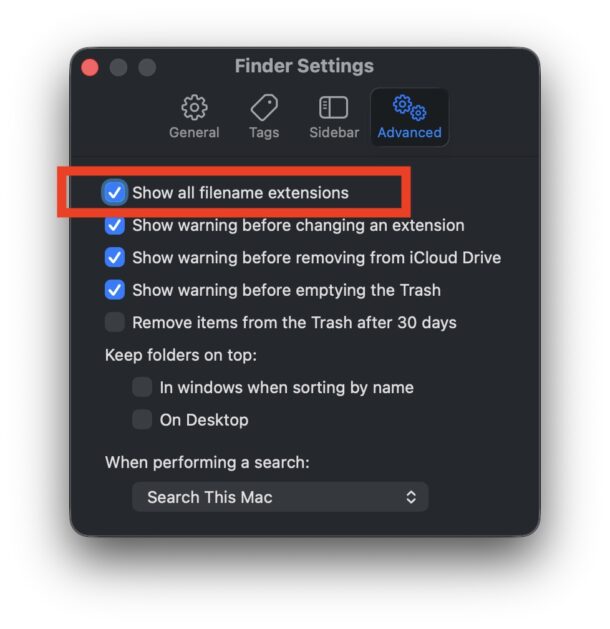
Pay close attention to the Spotlight icon in your Mac menu bar as you toggle the setting off and on for filename extensions, and you will see it briefly vanish and reappear, indicating it has relaunched. This is sort of like killing the Spotlight process but much more elegant.
Spotlight is a fantastic search engine but it has had some hiccups lately with Tahoe and Sequoia, where it is sometimes does not work, or is unable to find any local files at all, or not find specific files. While these issues are frustrating, it’s important to remember some quirks with Spotlight have existed since the introduction of the search feature on the Mac, and our first troubleshooting Spotlight guide back from 2007(!) remains mostly valid advice too.
As mentioned earlier, we recommend always showing filename extensions on a Mac because it makes it easier to identify files, particularly for those of us who work with multiple file types but sometimes the same file name (for example Image.jpg and Image.png). Plus it makes tasks like batch changing file extensions much easier.
So there we have it, an unusual and unorthodox new way to restart Spotlight on the Mac. Pretty neat, huh? Try it out the next time you’re running through some Spotlight troubleshooting, perhaps this alone will solve the problem for you.